Status Display
cFos will display connection data either on a status window or on a variety of available skins (animated windows).
There are three different display types:
Animated Status Displays (Skins)
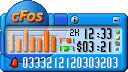
Connection
A click on the cFos Logo links you directly to our cFos Homepage. The small information symbol provides additional info about ISDN and DSL. Which COM port is currently in use is shown on the upper right. Symbols in the lower left corner refer to the connection status: Green arrow -> active connection. Blue dial -> dialup attempt. Telephone receiver with a downward arrow -> disconnect. Red bell -> analog ring on remote side.
Displayed next to these symbols is the budget number, followed by information on time spent online (cf. Budget Management). Active connection time is given in hours:minutes, while transfer rates are represented as graphic bars.
Brief Explanation of LEDs Found along the Right Skin Frame:
Upper LED GREEN: DTR high/low // YELLOW: X.31 (config. from remote) on/off // RED: incoming connection.
Lower LED BLUE: COM port is in auto answer mode // YELLOW: incoming calls won't be accepted (off-hook).
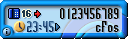
Call Monitor
Caller ID is shown on the upper right. Just below, you can find the MSN that was used for connection. The orange-colored information button on the lower right is used to display call-monitor configuration data. This also provides a convenient way of checking the time a call was received. In addition, a number and symbol on the upper left track CAPI CIP values for the last connection.
» To the cFosSpeed Status Window
The Small Status Window
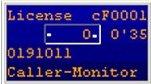
<- License No.
<- CPS-O-Meter / Time Online
<- Number Called
<- Call Monitor
The Large Status Window
Status Line Layout:
                       Number of frames yet to be loaded
                       |
                       |      Number of frames currently in transfer
                       |      |
                       |      |                     Active connection time
                       |      |                                          |
                       |      |         CPS-O-METER of last 8 secs.      |
                       |      |             |                            |

     COM4> C-B3  ACOD  0R:64  0T:1024 C:12 7680 HDLC 19200  9111041     0'39

           | |   ||||     |       |     |         |   |     |
  Connect/ | |   ||||     |       |     Charges   |   |     |
  disconnect |   ||||      \      |    (in units) |   |     Number called
  indicator  |   ||| \      |     |               |   |
   (*)       |   |||  DTR-  |     |               |   Bps rate with V110
         Level   ||| "LED"  |     |               |
                 |||        |     |               B2 protocol (e.g., X75)
                / ||        |     |
        Auto-ans  ||        |     Size of last block transmitted, with TX-"LED"
                 / |        |
   Carrier detect  |        Size of last block received, with RX-"LED"
                   |
                   Offhook-"LED": on = reject incoming calls
(*) during connection, the number of active B channels is displayed here ("B3-1"). When using cFos [PRO] Channel Bundling (CCB), it may instead be shown as "B3-2."
It's possible that digits start appearing in front of the "R". All these indicate is the number of data blocks whose reception cFos has yet to confirm to CAPI.
Window Settings
The following options are available in the "Window settings" submenu of the cFos Context Menu:
- Window Type
- Selection of the kind of display cFos is supposed to use (skin/small or large window).
- COMx
- Special window settings for COM Port No. X:
Select Skin This allows you to choose from different cFos skin types (for more, see Skin Tutorial).
Auto open/close If this setting is activated, the cFos status window (or skin) is opened automatically upon connection and closed during disconnection.
Window always on top This determines whether or not the cFos status display will stay on top of other windows.
Standard Position Clicking on this will have the cFos status window return to its default position. - Call Monitor
- Special window settings for the cFos call monitor:
Select Skin This allows you to choose from different cFos skin types (for more, see Skin Tutorial).
Auto open/close If this setting is activated, the cFos status window (or skin) is opened automatically upon connection and closed during disconnection.
Window always on top This determines whether or not the cFos status display will stay on top of other windows.
Standard Position Clicking on this will have the cFos status window return to its default position. - Taskbar/Tray Icon
- This will switch the cFos tray icon on or off.
- Save Window Settings
- If you have made any changes to the window settings, you can save them using this function.