
Linksys E2500 (firmware version 2.0): port forwarding guide
This guide shows in 6 steps how to forward port 80 (HTTP) on the Linksys E2500 (firmware version 2.0) to your PC, so that a web server such as the free cFos Personal Net is reachable from the Internet. Other routers: all guides.
Enable port forwarding for the Linksys E2500 (firmware version 2.0)
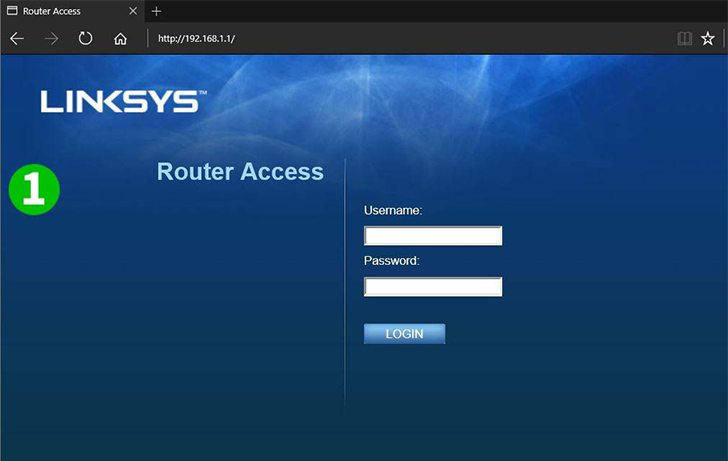
1 Log in to the router dashboard, by default the URL is 192.168.1.1. Log in with the default username and password if you did not change them. (Default login information can be found on the router package or on the router bottom/back sticker)
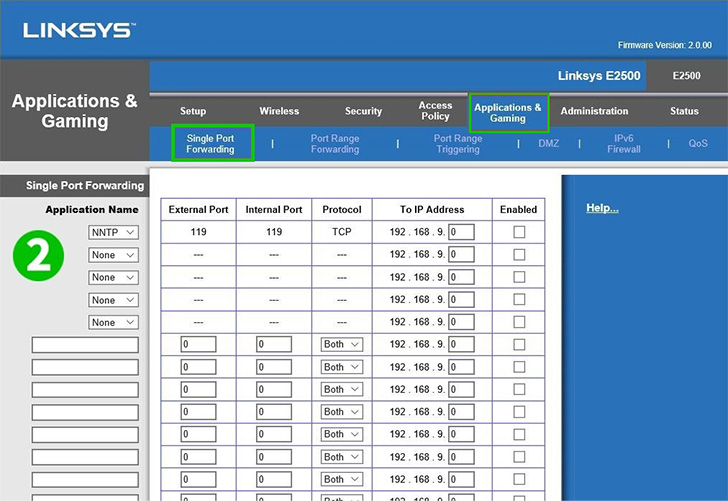
2 From top menu bar navigate to "Applications & Gaming" and then select the sub menu "Single Port Forwarding"
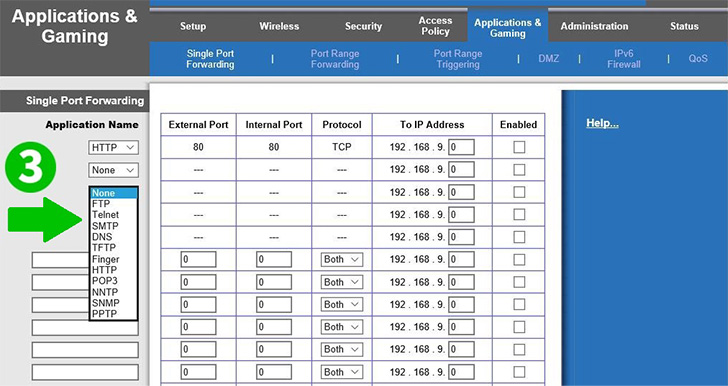
3 Select "HTTP" from the drop-down menu; the port required for that protocol will be entered automatically.
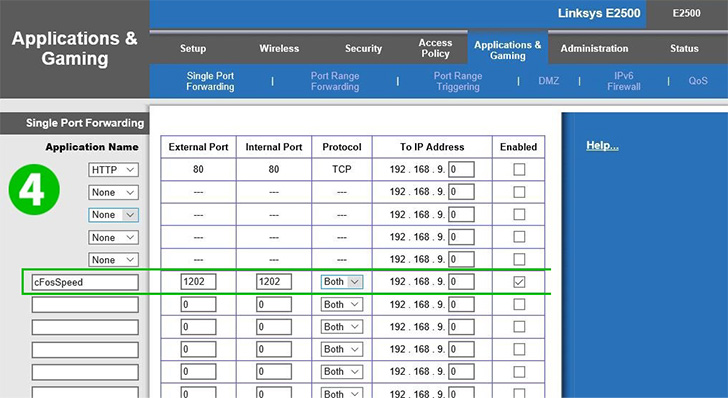
4 If you want to forward a nonstandard or a specific port then give it a name as seen in the figure "cFosSpeed", then your desired port and select the protocol "Both" if you are not sure which one you need (TCP or UDP). Enter the IP address of the computer cFos Personal Net is running on into the field "To IP Address".
Also don't forget to select the "Enabled" checkbox on the right to enable the forwarding
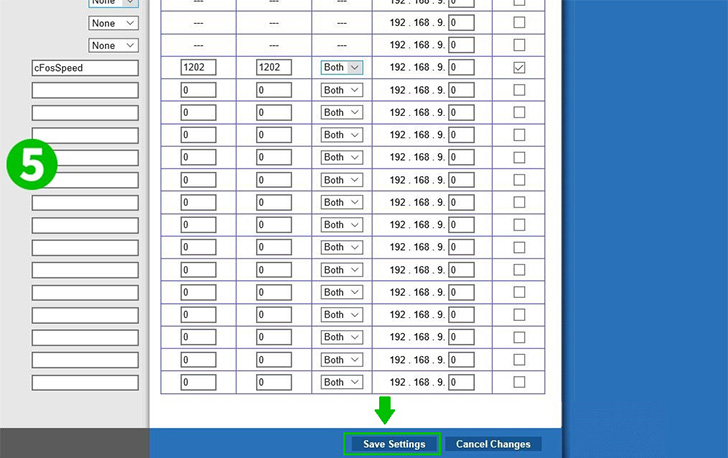
5 Click on "Save Settings" to save and apply the changes you have made
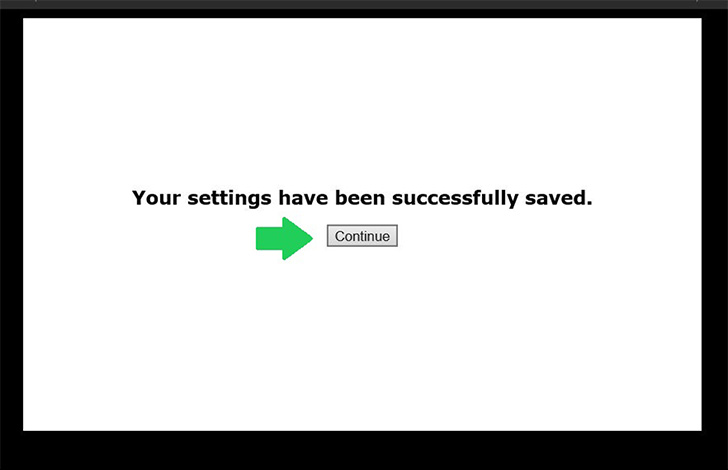
6 Click on "Continue". You have now successfully forwarded your desired port
Port forwarding is now configured for your computer!