
Technicolor DPC3848VE port forwarding: step-by-step guide
This guide shows in 7 steps how to forward port 80 (HTTP) on the Technicolor DPC3848VE to your PC, so that a web server such as the free cFos Personal Net is reachable from the Internet. Other routers: all guides.
Enable port forwarding for the Technicolor DPC3848VE
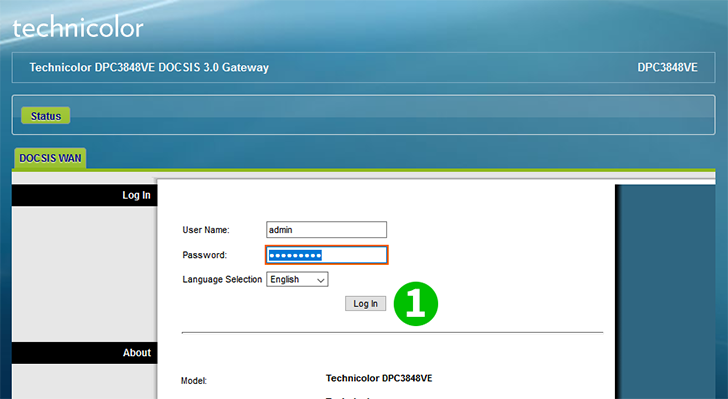
1 Log into your router with your username and password (default IP: 192.168.0.1 - default username/password: admin/cisco)
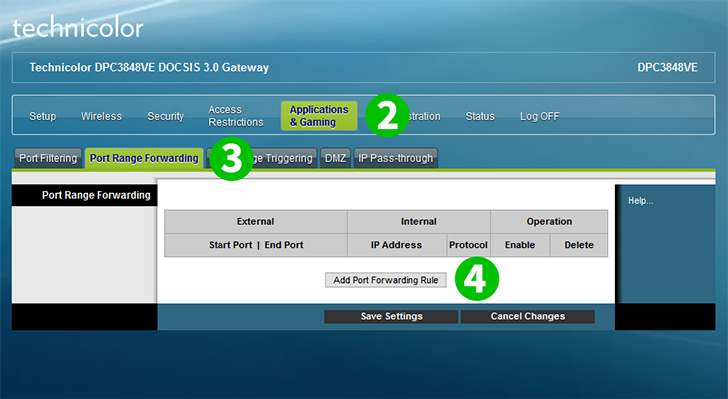
2 Click on "Aplications & Gaming"
3 Click on "Port Range Forwarding" tab
4 Click on the "Add Port Range Forwarding Rule" button
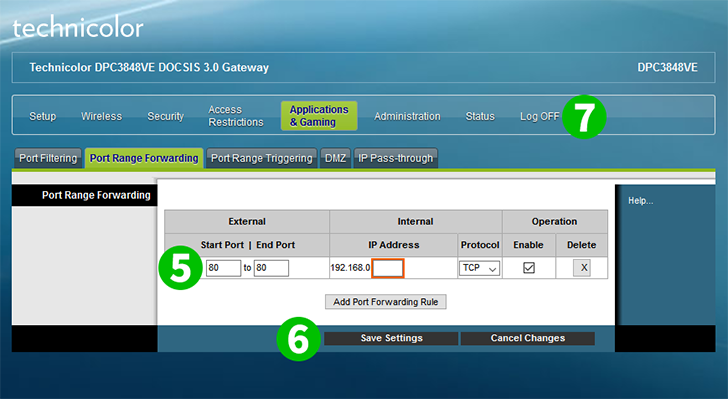
5 Enter 80 in Start Port and End Port and enter the (preferably static) IP of the computer cFos Personal Net is running on in the IP Address field
6 Click on "Save Settings" button
7 Log out of your router by clicking on "Log OFF" in the main menu on the top right
Port forwarding is now configured for your computer!