
D-Link DIR-612 port forwarding: step-by-step guide
This guide shows in 6 steps how to forward port 80 (HTTP) on the D-Link DIR-612 to your PC, so that a web server such as the free cFos Personal Net is reachable from the Internet. Other routers: all guides.
Enable port forwarding for the D-Link DIR-612
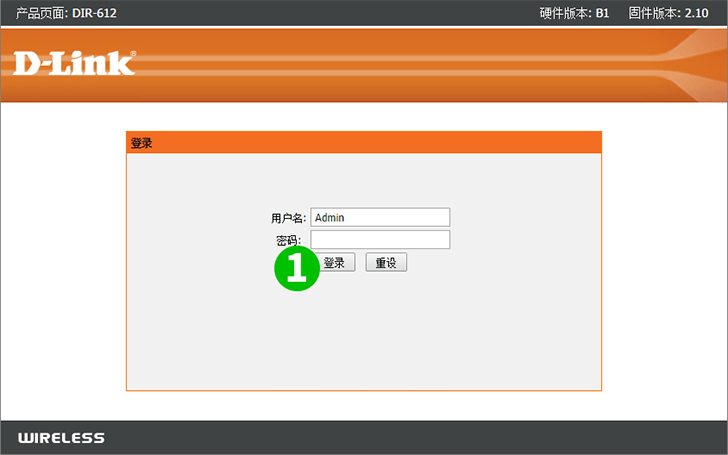
1 Enter your router IP in your web browser address bar and log in as admin (if this is your first login, you can just try clicking on "Log In"):
Default IP: 192.168.0.1
Default user name: Admin
Default password: none (leave it blank)
You can also find this information on the label at the bottom of your router.
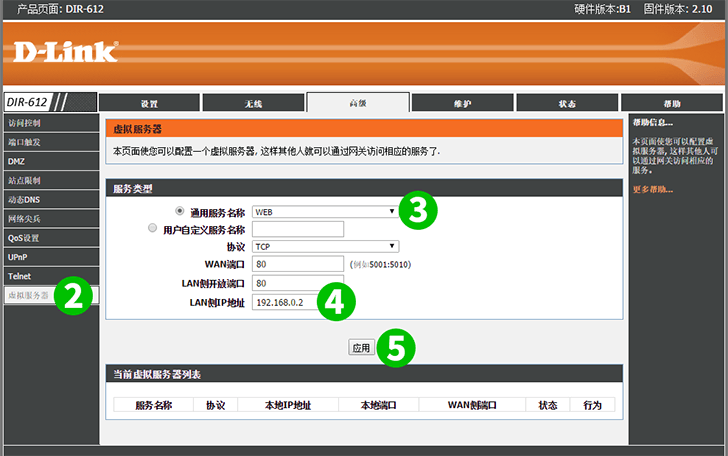
2 This router uses the "Virtual Server" instead of "Port Forwarding".
So enter this into your web browser address bar: http://192.168.0.1/virtualSrv.htm
(You should change "192.168.0.1" to the correct router IP address, if your router doesn't use the default one.)
3 Select "WEB" in the drop-down list
4 Enter the IP address of the computer running cFos Personal Net in the field "IP Address"
5 Click on "Apply"
6 If it doesn't work, just reboot the router and wait until it is back online
Port forwarding is now configured for your computer!