
DIR-300NRU-rev.B5-B6 port forwarding: step-by-step guide
This guide shows in 11 steps how to forward port 80 (HTTP) on the DIR-300NRU-rev.B5-B6 to your PC, so that a web server such as the free cFos Personal Net is reachable from the Internet. Other routers: all guides.
Enable port forwarding for the DIR-300NRU-rev.B5-B6
The following guide is intended for the latest official firmware (2.5.12) which you can download here.
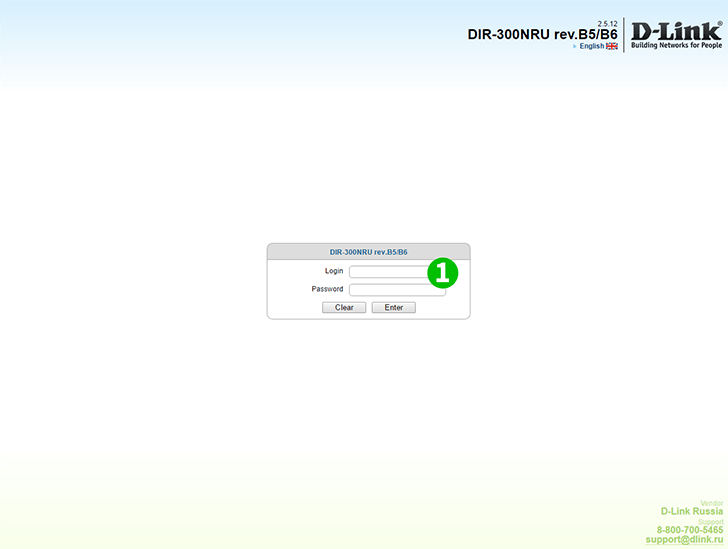
1 Log into your router with your username and password (default IP: 192.168.0.1 - default username: admin password: admin)
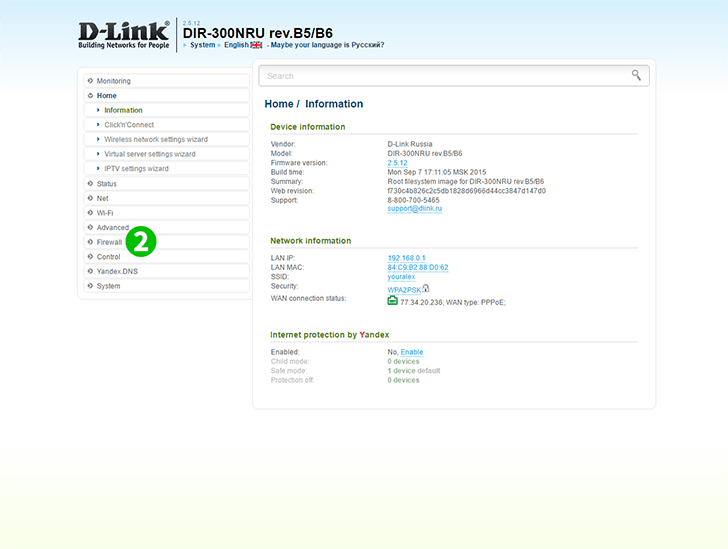
2 Click "Firewall" in the menu on the left
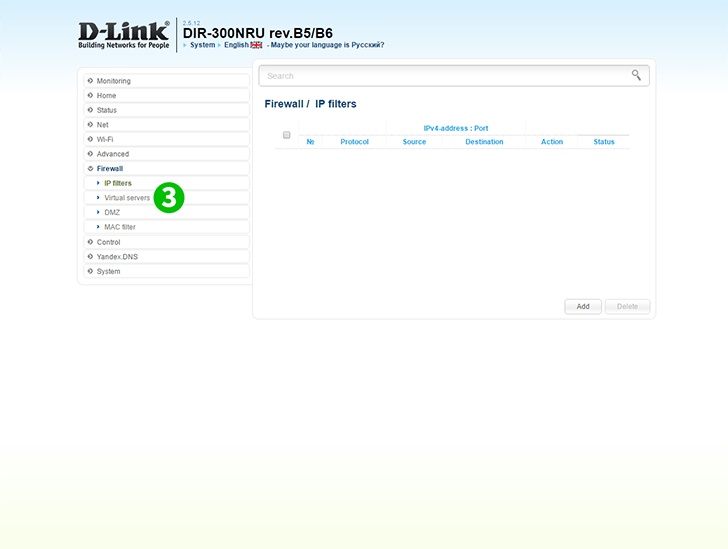
3 Click "Virtual servers"

4 Click "Add" button
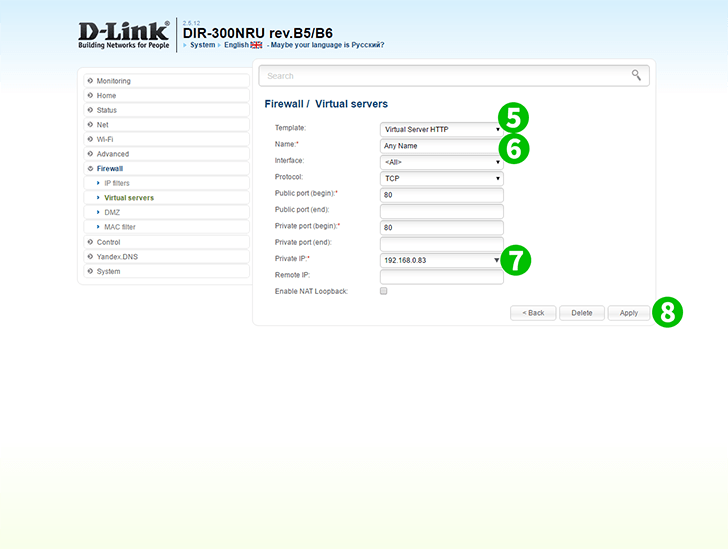
5 Select "Virtual server HTTP" in "Template" drop-down list (selected template is applied automatically)
6 Specify any name you like in "Name" field
7 In "Private IP" drop-down list select the IP of the computer cFos Personal Net is running on (this computer should be on and connected to the router prior to this setup, it will appear in this list automatically)
8 Click "Apply" button
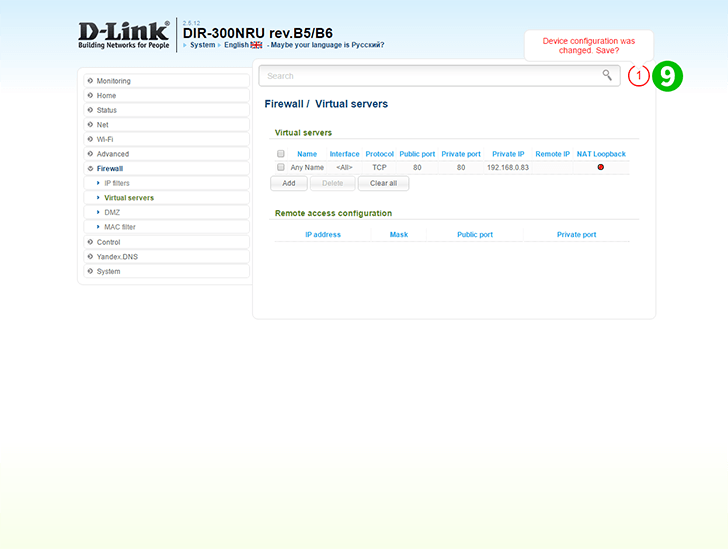
9 Click the red circled button to save changes
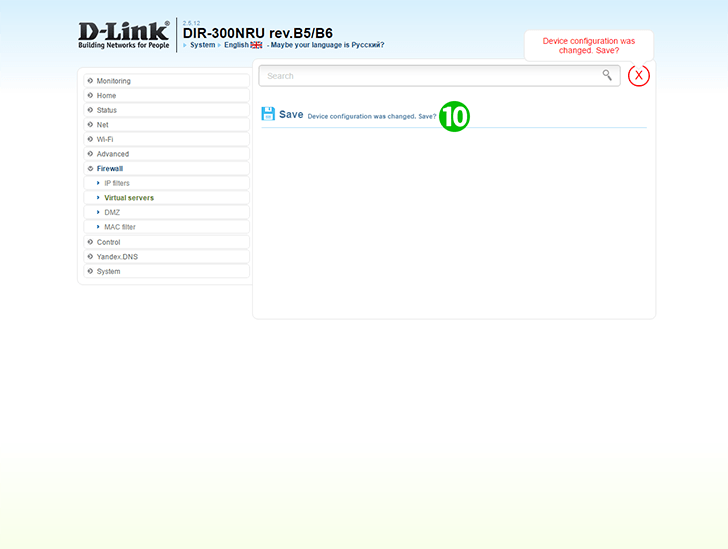
10 Click "Save Device configuration was changed. Save?" link to confirm changes
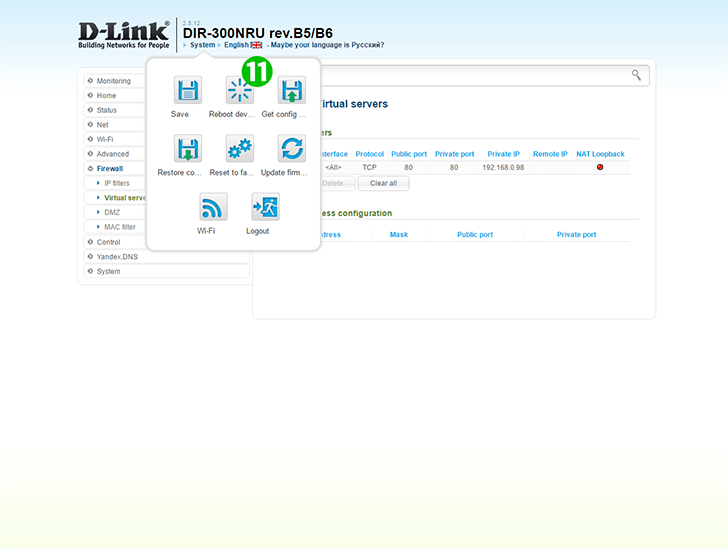
11 Reboot the router by clicking on "Reboot device" button in "System" top menu
Port forwarding is now configured for your computer!